uMessage User Guide
uMessage is a desktop app that helps university students manage contacts, academics and CCAs that communicate and hold meetings on various platforms. It is optimized for keyboard users.
Quick start
-
Ensure you have Java
11or above installed in your Computer. -
Download the latest
uMessage.jarfrom this website -
Copy the file to the folder you want to use as the home folder for uMessage.
-
Double-click the file to start the app. The GUI similar to the below should appear in a few seconds. It has been annotated to show the key regions in the application. Note how the app contains some sample data.
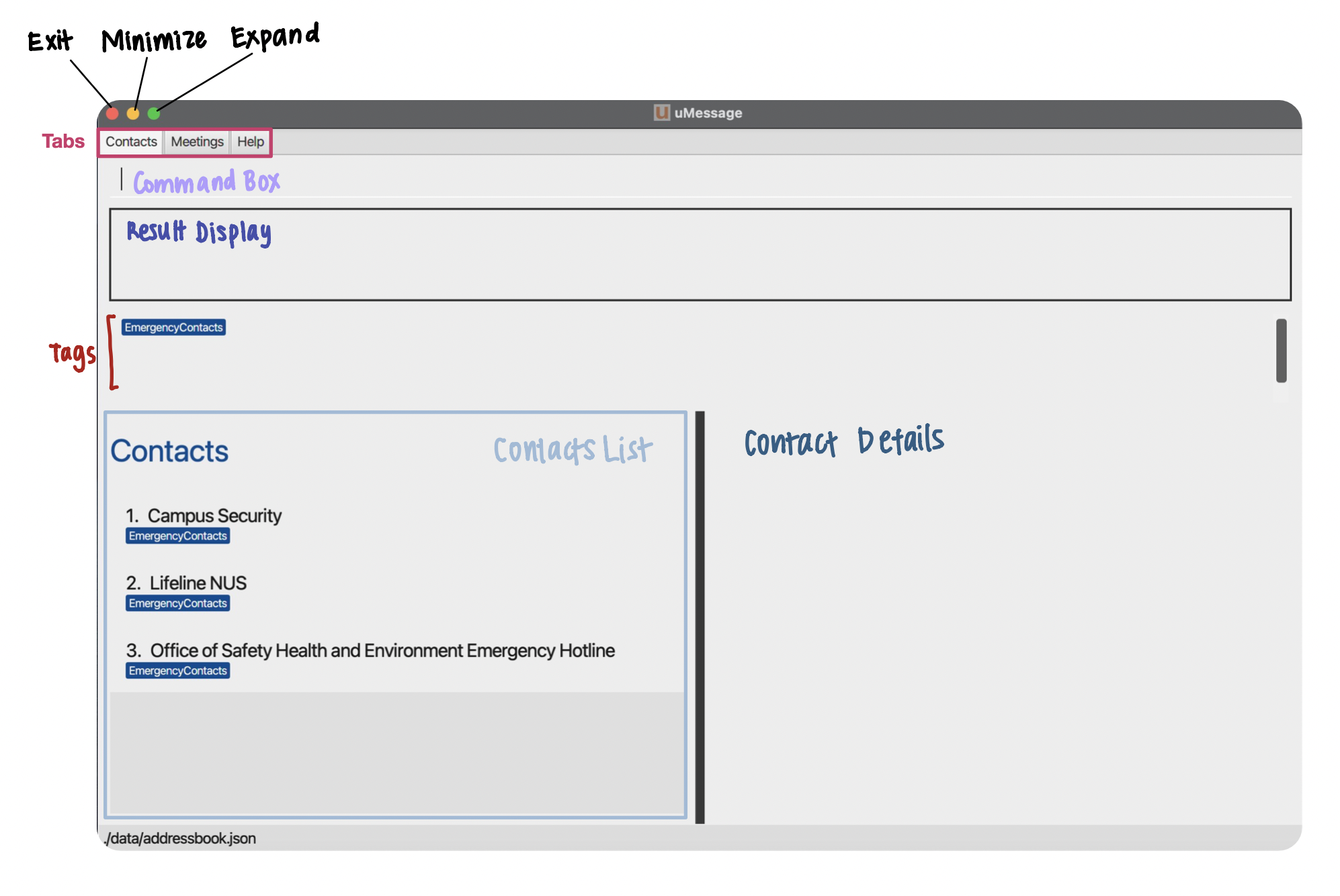
This image is specific to MacOS, note that the exit,minimize and ` expand` will look different on a different OS.
-
Type the command in the command box and press Enter to execute it. e.g. typing
helpand pressing Enter will open the help window.
Some example commands you can try:-
Type any keywords, and uMessage will live search the list.
-
addn/Aaronto the Address Book. -
edit1 e/aaron@example.com: Adds an email to Aaron. -
deletealex: Deletes Alex if the person exists. -
clear: Deletes all contacts. -
exit: Exits the app.
-
-
Refer to the Features below for details of each command.
Features
 Notes about the command format:
-
Words in
UPPER_CASEare the parameters to be supplied by the user.
e.g. inadd n/NAME,NAMEis a parameter which can be used asadd n/John Doe. -
Items in square brackets are optional.
e.gn/NAME [t/TAG]can be used asn/John Doe t/friendor asn/John Doe. -
Items with
… after them can be used multiple times including zero times.
e.g.[t/TAG]…can be used ast/friend,t/friend t/familyetc. -
Parameters can be in any order.
e.g. if the command specifiesn/NAME t/TAG,t/TAG n/NAMEis also acceptable. -
If a parameter is expected only once in the command but you specified it multiple times, only the last occurrence of the parameter will be taken.
e.g. if you specifyn/John n/Joe, onlyn/Joewill be taken. -
Extraneous parameters for commands that do not take in parameters (such as
help,list,exitandclear) will be ignored.
e.g. if the command specifieshelp 123, it will be interpreted ashelp.
Managing Contacts
The contacts are listed alphabetically. The contacts list is navigable using the arrow keys.
There cannot be duplicated contacts. Two contacts are the same if both have the same name (case-sensitive).
1. Adding: add
1.1 Adding a person
Format: add n/NAME [p/PHONE] [e/EMAIL] [sm/{SOCIAL MEDIA PLATFORM}, {ID}]… [t/TAG]…
Examples:
add n/John Doe p/91020111 e/JohnDoe@outlook.com sm/Telegram, @johnnydoe t/friend
add n/Betsy Crowe e/e0123456@gmail.com
add n/Potter
1.2 Adding new tag to a person
Format: add NAME t/NEWTAG or add INDEX t/NEWTAG
INDEX will be matched if it is valid.
NAME is case sensitive and must match the full name.
INDEX must be a positive integer.
Note that tags cannot be added to pre-installed emergency contacts.
Examples:
add John Doe t/friend
add 2 t/friend
1.3 Adding new social media to a person
Format: add INDEX sm/{SOCIAL MEDIA PLATFORM}, {ID} or add NAME sm/{SOCIAL MEDIA PLATFORM}, {ID}
INDEX will be matched if it is valid.
NAME is case sensitive and must match the full name.
INDEX must be a positive integer.
Note that social media cannot be added to pre-installed emergency contacts.
Examples:
add John Doe sm/telegram, @johndoe23
add 2 sm/telegram, @johndoe23
2. Searching persons by keywords: [find]
Format: [find] KEYWORD [MORE_KEYWORDS]
Note that the command word is optional, i.e., uMessage searches for whatever entered by default, unless a command is detected.
Results are listed according to how much they match the keywords. Names are matched first, then tags, then other fields.
If the first keyword is a command word, it will still be recognised as a command and will not be treated as keywords. The whole list will be displayed when a command word is entered.
The keywords are compared to all fields of each person.
Persons matching at least one keyword will be returned (i.e. OR search). e.g. Hans Bo will return Hans Gruber, Bo Yang.
The search is case-insensitive. e.g hans will match Hans.
The order of the keywords does not matter. e.g. Hans Bo will match Bo Hans.
Examples:
find awill returnAlex Yeoh,Bernicewith the tagcolleagues,Linwith the emaillin@example.com(if these contacts exist).
adoes the same as above.
find alex yeohwill return bothAlexandAlex Yeoh(if both contacts exist), withAlex Yeohdisplayed at the top.
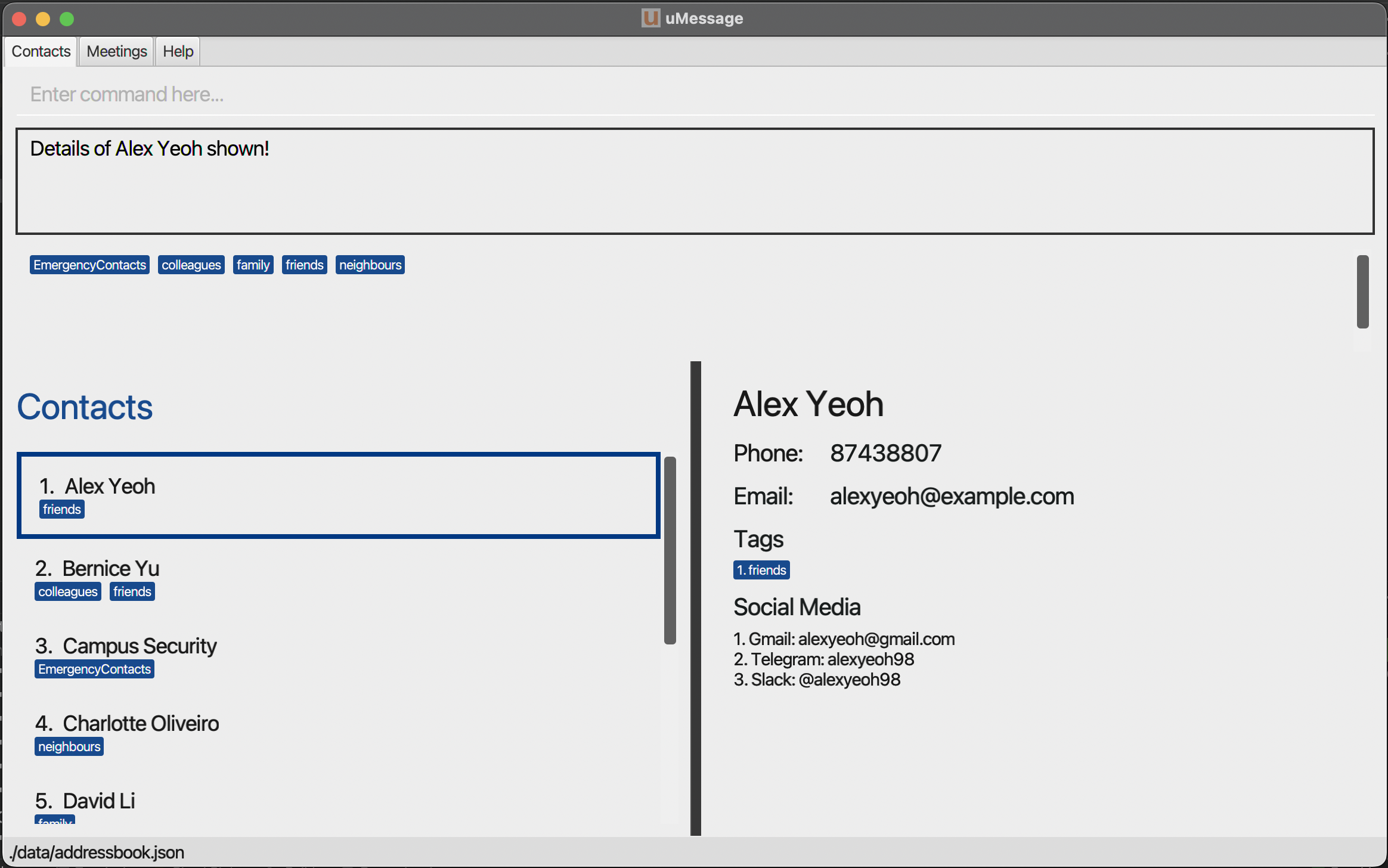
3. Viewing details of a person
Format: view INDEX or click the Contact/Meeting under the list.
A Contact Detail card with the details of a contact will be shown to the user as shown below.
Examples:
view 1
clicking on the first contact does the same as above.
4. Editing details of a person: edit
4.1 Editing a person
Format: edit NAME [n/NAME] [p/PHONE] [e/EMAIL] [sm/{SOCIAL MEDIA PLATFORM}, {ID}]… [t/TAG]… or edit INDEX [n/NAME] [p/PHONE] [e/EMAIL] [sm/{SOCIAL MEDIA PLATFORM}, {ID}]… [t/TAG]…
Note that pre-installed emergency contacts cannot be edited.
Examples:
edit 1 n/Aaron sm/Telegram, @aaron
edit Alex n/Aaron p/52873618
4.2 Editing a person’s social media
Edits a social media found in a person’s list of social media.
Format: edit NAME i/SOCIAL_MEDIA_INDEX [f/] sm/NEW_DETAILS or edit INDEX i/SOCIAL_MEDIA_INDEX [f/] sm/NEW_DETAILS
NAME is case sensitive and must match the full name.
INDEX refers to the index of the person you want to edit, and must be a positive integer.
SOCIAL_MEDIA_INDEX refers to the index of the social media in the person’s list of social media, and must be a positive integer.
f/ is an optional parameter, include it to edit the name of the social media instead of the social media description.
Examples:
edit 1 i/2 f/ sm/Telegramedit Alex Yeoh i/1 sm/@alexxy
5. Copying: copy
5.1 Copying all details of a person
Format: copy NAME
NAME is case sensitive and must match the full name.
Examples:
copy David Li
copy Bernice Yu
5.2 Copying one detail under the Contacts
Format:
Click on the relevant label values to copy the value to the system clipboard.
Note that clicking the email and telegram fields will trigger a unique response.
Examples:
Copying Phone: Clicking the phone, and the phone number will be copied.
For Email and Telegram:
Copying email: Clicking the email will trigger the local Mail application to create a new email to the aforementioned address.
Copying a telegram handle: Clicking the telegram handle will open the Telegram link to contact the person at the aforementioned handle name.
6. Deleting: delete
6.1 Deleting a person
Format: delete NAME or delete INDEX
INDEX will be matched if it is valid.
NAME is case sensitive and must match the full name.
INDEX must be a positive integer.
Note that pre-installed emergency contacts cannot be deleted.
Examples:
delete 2deletes the contact at index 2
delete Alex Yeohdeletes the contactAlex Yeoh
delete Alexordelete alex yeohwill not deleteAlex Yeoh
6.2 Deleting tag from a Person
Format: delete NAME t/TAG delete INDEX t/TAG
INDEX will be matched if it is valid.
NAME is case sensitive and must match the full name.
INDEX must be a positive integer.
Note that tags of pre-installed emergency contacts cannot be deleted.
Examples:
delete kaaviya t/friend
delete 1 t/colleague
6.3 Deleting social media from a Person
Format: delete NAME sm/{SOCIAL MEDIA PLATFORM}, {ID} or delete INDEX sm/{SOCIAL MEDIA PLATFORM}, {ID}
INDEX will be matched if it is valid.
NAME is case sensitive and must match the full name.
INDEX must be a positive integer.
Note that social media of pre-installed emergency contacts cannot be deleted.
Examples:
delete kaaviya sm/Telegram, @uNivUS
delete 1 sm/Telegram, @uNivUS
Managing Meetings
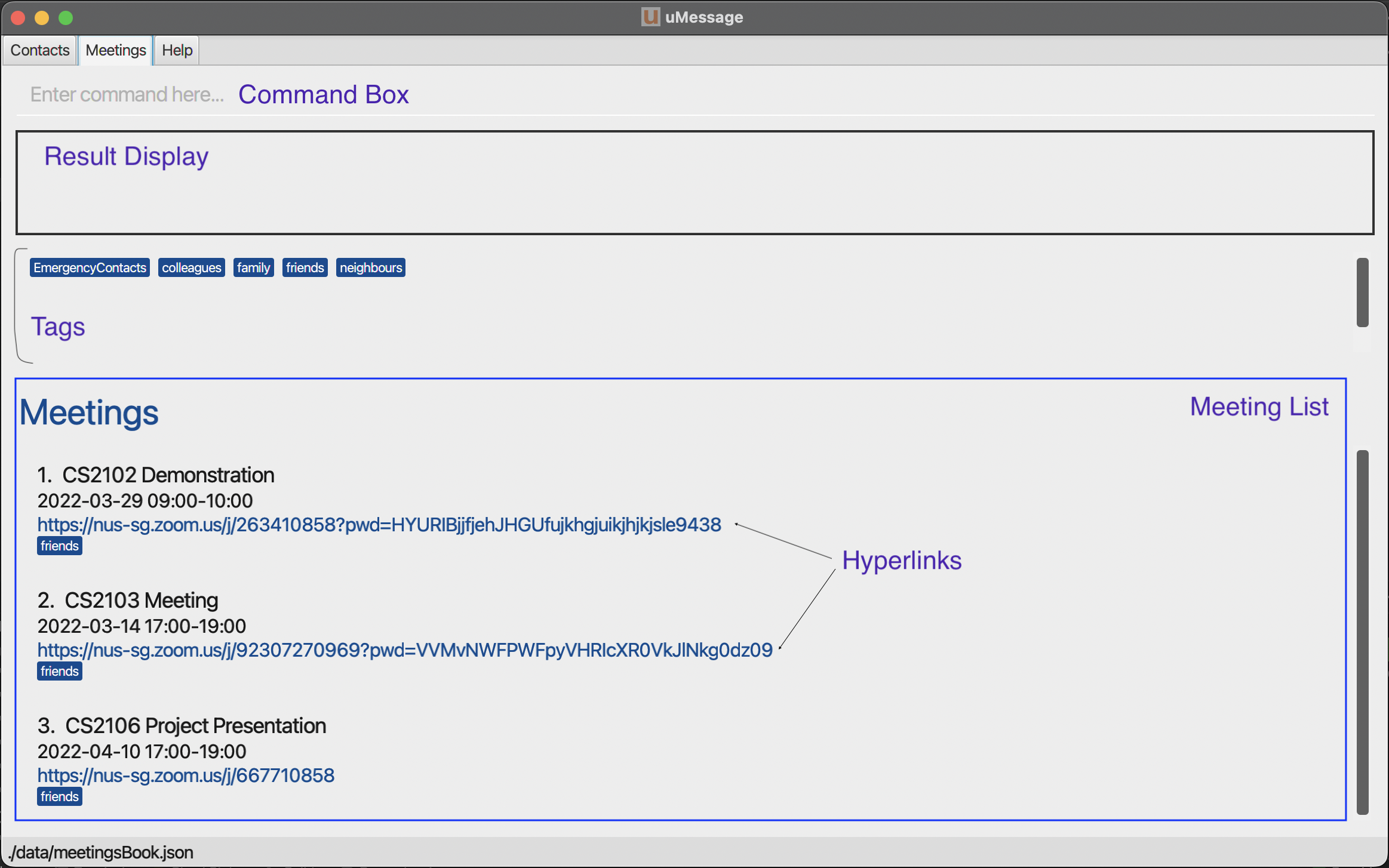
The meetings in the future are listed first with ascending starting time, followed by past meetings with descending starting time.
There cannot be duplicated meetings. Two meetings are the same if both have the same title (case-sensitive) and same start time.
Access the Meetings by clicking on the tab in the upper region of the application to access the page that looks like as shown below. Note that the hyperlinks in the details are clickable and will redirect the user to the preferred browser.
1. Adding: add
1.1 Adding a meeting
Format: add n/TITLE l/LINK s/START_TIME d/DURATION [t/TAG]…
START_TIME must follow the format yyyy-M-d HHmm (e.g. 2022-3-20 0900) and must not be in the past.
DURATION is in minutes and must be an integer between 1 and 10000.
The meeting link must start with https:// or http:// for it to be valid.
Examples:
add n/CS2040 PE l/https://www.google.com s/2022-3-20 0900 d/120 t/Alex
add n/CS2103 Tutorial l/https://www.google.com s/2022-3-20 1200 d/60
1.2 Adding new tag to a meeting
Format: add INDEX t/NEWTAG
INDEX must be a positive integer.
Examples:
add 1 t/urgent
2. Searching meetings by keyword: [find]
Finds meetings with the given keywords.
Format: [find] KEYWORD [MORE_KEYWORDS]
Results are listed according to how much they match the keywords. Titles are matched first, then tags, then other fields.
If the first keyword is a command word, it will still be recognised as a command and will not be treated as keywords. The whole list will be displayed when a command word is entered.
The keywords are compared to all fields of each meeting.
Meetings matching at least one keyword will be returned (i.e. OR search). e.g. CS will return CS2040 PE, CS2103 Tutorial.
The search is case-insensitive. e.g cs will match CS2030.
The order of the keywords does not matter. e.g. 2040 CS will match CS 2040.
Examples:
cswill returnCS2040 PE,CS2103 Tutorial,Group meetingwith the tagcs2103(if these meetings exist).
find csdoes the same as above.
3. Editing details of a meeting: edit
Format: edit INDEX [n/TITLE] [l/LINK] [s/START_TIME] [d/DURATION] [t/TAG]…
START_TIME must follow the format yyyy-M-d HHmm (e.g. 2022-3-20 0900) and must not be in the past.
DURATION is in minutes and must be an integer between 1 and 10000 (inclusive).
Note that meetings in the past are not editable.
Examples:
edit 1 n/CS2030 PE
edit 2 s/2022-4-1 1600
4. Deleting: delete
4.1 Deleting a meeting
Format: delete INDEX
INDEX must be a positive integer.
Example:
delete 2deletes the meeting at index 2
4.2 Deleting tag from a meeting
Format: delete INDEX t/TAG
Deletes tag TAG from a meeting specified using TITLE or INDEX.
Example:
delete 1 t/urgent
Managing Global Tags
Global tags helps you organise relevant contacts and meetings together.
1. Adding a global tag
Format: add t/TAG
Example:
add t/CS2100
2. Deleting a global tag
Format: delete t/TAG
Example:
delete t/CS2100
3. Filter by tag
Format: click on a tag in the tag panel. This filters both contacts and meetings with the tag.
Universal Features
1. Viewing help: help
Displays the Help tab.
2. Listing all persons/meetings: list
Shows a list of all persons/meetings in the book.
3. Clearing all entries: clear
Clears all non-Emergency Contacts entries and meetings from the address book.
4. Exiting the program: exit
Exits the program.
5. Saving the data
uMessage’s data are saved in the hard disk automatically after any command that changes the data. There is no need to save manually.
6. Editing the data file
uMessage’s data are saved as two JSON files: [JAR file location]/data/addressbook.json and [JAR file location]/data/meetingsbook.json. Advanced users are welcome to update data directly by editing those data files.
 Caution:
If your changes to the data file makes its format invalid, the data will be discarded and uMessage start with an empty data file at the next run.
Caution:
If your changes to the data file makes its format invalid, the data will be discarded and uMessage start with an empty data file at the next run.
Summary of Commands
Managing Contacts
| Command | Intention | Format |
|---|---|---|
| add | add a new person | add n/NAME [p/PHONE] [e/EMAIL] [sm/{SOCIAL MEDIA PLATFORM}, {ID}]... [t/TAG] |
| add | add a tag to an existing person |
add NAME t/NEWTAG or add INDEX t/NEWTAG
|
| add | add a new social media to a person |
add NAME sm/{SOCIAL MEDIA PLATFORM}, {ID} or add INDEX sm/{SOCIAL MEDIA PLATFORM}, {ID}
|
| [find] | search for a person | [find] KEYWORD [MORE_KEYWORDS] |
| view | view the details of a person |
view INDEX or click the Contact/Meeting under the list. |
| edit | edit details of a person | edit INDEX [n/NAME] [p/PHONE] [e/EMAIL] [sm/{SOCIAL MEDIA PLATFORM}, {ID}]… [t/TAG]… |
| edit | edit a person’s social media |
edit INDEX/NAME i/INDEX_SOCIAL_MEDIA f/ sm/{SOCIAL MEDIA PLATFORM} or edit INDEX/NAME i/INDEX_SOCIAL_MEDIA sm/{SOCIAL MEDIA ID}
|
| copy | copy all details of a person | copy NAME |
| copy | copy one detail of a person | perform the view command and click on the relevant label values to copy |
| delete | delete a person |
delete NAME or delete INDEX
|
| delete | delete a tag from a person |
delete NAME t/TAG delete INDEX t/TAG
|
| delete | delete a social media from a person |
delete NAME sm/{SOCIAL MEDIA PLATFORM}, {ID} or delete INDEX sm/{SOCIAL MEDIA PLATFORM}, {ID}
|
Managing Meetings
| Command | Intention | Format |
|---|---|---|
| add | add a new meeting | add n/TITLE l/LINK s/STARTTIME d/DURATION |
| add | add a tag to an existing meeting |
add TITLE t/NEWTAG or add INDEX t/NEWTAG
|
| find | search for a meeting | [find] KEYWORD [MORE_KEYWORDS] |
| edit | edit details of a meeting | edit INDEX [n/TITLE] [l/LINK] [s/START TIME] [d/DURATION] [t/TAG]… |
| delete | delete a meeting |
delete TITLE or delete INDEX
|
| delete | delete a tag from a meeting |
delete TITLE t/TAG delete INDEX t/TAG
|
Universal
| Command | Intention | Format |
|---|---|---|
| help | display the Help tab |
help |
| list | displays all persons/meetings | list |
| clear | deletes all non-emergency contacts and meetings | clear |
| exit | exits the program | exit |
FAQ
Q: How do I transfer my data to another Computer?
A: Install the app in the other computer and overwrite the empty data file it creates with the file that contains the data of your previous uMessage home folder.